A URL opener lets you paste a list of links and open all of them in separate browser tabs with a single click. If you regularly review dozens of pages, check backlinks, test landing pages or share a reading list, this free bulk URL opener saves you from copying and pasting each address one by one.
What Is a URL Opener?
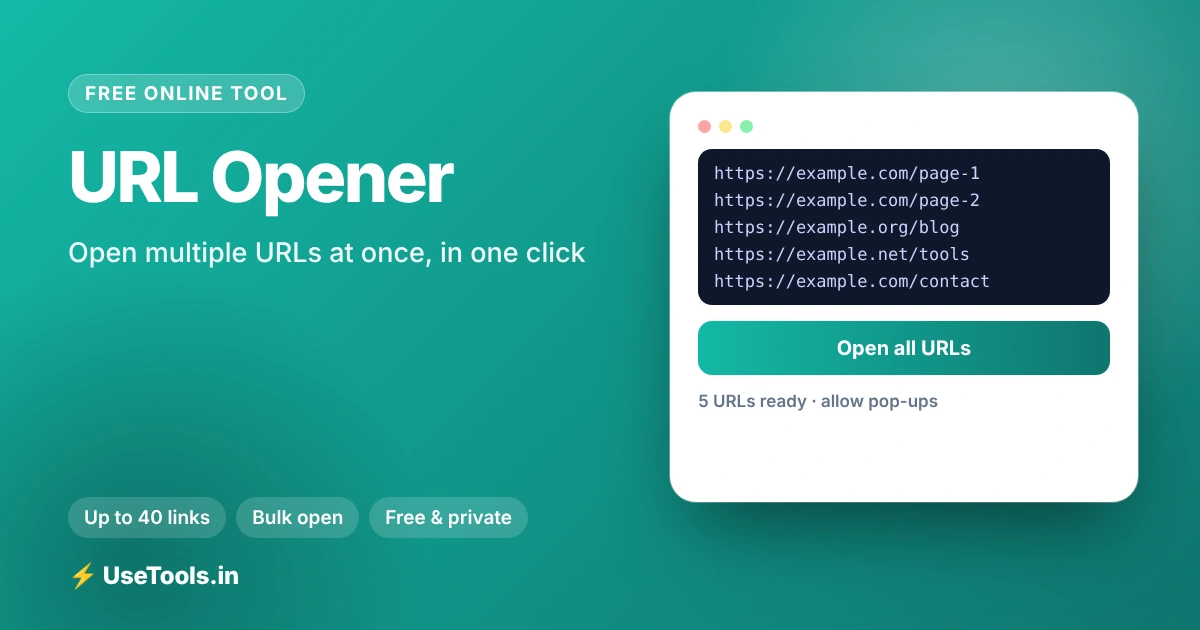
A URL opener, sometimes called a multiple URL opener or open multiple URLs at once tool, takes a list of web addresses and launches each one in its own tab. Instead of typing an address, pressing Enter, opening a new tab and repeating the process forty times, you paste everything into one box and press a button. The task goes from several minutes to a few seconds.
The UseTools.in URL Opener accepts up to 40 URLs per click, one address per line. If a line has no protocol, the tool adds http:// for you, and your browser upgrades the connection to HTTPS wherever the site supports it. Nothing is stored, nothing is uploaded and no account is needed.
How to Open Multiple URLs at Once
- Paste or type your links into the box, with one URL per line.
- Remove anything that is not a web address. Blank lines are ignored automatically, but a line with random text will open a broken tab.
- Press Submit (All URL).
- If your browser shows a pop-up blocked message, choose Always allow pop-ups from usetools.in and press the button again.
Why pop-ups matter: Browsers treat extra tabs opened by a script as pop-ups. Allowing them once for this site is all that is needed. Without that permission, most browsers open only the first link or none at all.
Who Uses a Bulk URL Opener?
SEO professionals and webmasters
After a site migration, you may need to verify that a list of old URLs redirects to the right new pages. Opening them in bulk makes visual spot checks quick. The same applies to checking competitor pages, reviewing a batch of backlinks or confirming that every page in a sitemap sample loads correctly. For a deeper technical review of any single page, follow up with our SEO Score Checker.
Digital marketers and ad managers
Landing page QA is a constant job. Before a campaign goes live you want to confirm every ad destination, tracking parameter and mobile layout. Paste the destination URLs, open them together and review each in turn.
Students, researchers and writers
Research rarely lives on one page. Collect the sources for an assignment or article, open them all at the start of a work session and keep every reference ready in its own tab.
Teams and everyday users
Share a list of links with colleagues, then let each person open the whole set in one go. It also works well for a morning routine: keep your favourite news, dashboards and tools in a note and open them together.
Features of This URL Opener
- Open up to 40 links in one action, keeping your browser responsive.
- Automatic protocol: addresses typed without http or https, such as example.com, still open correctly.
- Works on every modern browser including Chrome, Edge, Firefox and Safari.
- No installation, extension or sign-up required.
- Private: your list is processed on your own device.
- Mobile friendly, although desktop browsers handle many tabs far better.
Tips for Working With Many Tabs
- Group links by task before opening them. Twenty related pages are easier to review than forty random ones.
- Close tabs as you finish them to keep memory use low. Dozens of heavy pages can slow older computers.
- Use your browser’s tab groups or pinned tabs to organise the opened pages.
- Combine this tool with a spreadsheet. Build the URL list in a sheet, copy the column and paste it here.
- If you generate URLs from patterns, create them first with the Word Combiner, using a prefix such as
https://example.com/.
Troubleshooting: Why Are Some URLs Not Opening?
Most problems come from one of four causes. First, the browser is blocking pop-ups, which is solved by allowing them for this site. Second, a line contains spaces or extra text, so it is not a valid URL and the browser cannot load it. Third, you have entered more than 40 addresses, so the list needs to be split into batches. Fourth, a destination site blocks being opened from another page, which is rare but possible for some secure services. In that case open that single link manually.
URL Opener vs Bookmark Folders and Extensions
Browsers already let you open a whole bookmark folder at once, and extensions can restore saved tab sessions. A web-based URL opener is different in three ways. It needs no setup, so it works on a borrowed computer or a locked-down office laptop where extensions are not allowed. It works from plain text, so a list from a spreadsheet, a chat message or an email can be used instantly without being turned into bookmarks first. And it does not keep anything, which is useful when the links are temporary, such as a one-off audit or a campaign checklist. For permanent collections, bookmarks remain the better choice; for quick bulk jobs, pasting into a URL opener is faster.
Privacy and Safety
The tool simply passes your addresses to your browser. We do not log the links you enter. Still, be careful about what you open: a bulk opener does not scan destinations for malware, so only open links from sources you trust. If you manage image assets for these pages, our Image Converter helps keep them light and fast.
URL Opener FAQs
How do I open multiple URLs at once?
Paste your links into the box with one URL on each line, then press the submit button. Each valid link opens in its own browser tab.
How many URLs can I open at the same time?
You can open up to 40 URLs in one click. If you have more, split them into batches so your browser stays responsive.
Why did only one tab open?
Your browser is probably blocking pop-ups. Allow pop-ups for usetools.in in the address bar settings and press the button again.
Do I need to type http:// or https:// before each link?
No. If a line starts with a plain domain such as example.com, the tool adds the protocol automatically and your browser handles the secure connection.
Is the URL Opener free?
Yes. It is completely free, needs no registration and has no daily usage limit.
Are my links stored or shared?
No. The list is handled inside your browser and is not saved on our servers.